Posts

Take a Brain Break

Image
Take a Brain Break Go Noodle  is a great free tool that has tons of appropriate music videos with coordination activities for your students. From yoga to The Sid Shuffle, these short videos will help students take their mind off testing and get the wiggles out!

EDULASTIC

Image
This week we are sharing a wonderful new web tool that allows you to create standards based formative assessments with instant access to mastery grading. To get started, go to:  https://www.edulastic.com/ Click on the "Join for Free" button and you can create a free teacher account by linking your Google account. Once you have created your account and entered your school information, create your classes. Edulastic allows you to import student rosters from Google Classroom. On the left side of the screen, you can see the menu to create an assessment, visit the assessment library, view student reports, or manage classes. Edulastic  has a fantastic library of assessments already made and tied to standards. In this example, I searched for "fractions" in the assessment library. I can search assessments by grade level, topic, or standards. You can click on an assessment in the library to preview it or assign it to a class. ...

Wrapping Up 2016-17!

Image
This week, we are sharing strategies for wrapping up your Google Classroom for the year. Clean Up Your Google Drive Google Classroom creates a "Classroom" folder in your Google Drive. In the folder is a sub-folder for each class you have created. You can move the folders and I recommend making a new favorites folder and moving any favorite assignments or project examples to this folder. It will make it easy to add assignments or handouts next year to your new classes. Another good idea is to create a 2016-2017 sub-folder in your "Classroom" folder and move all your current courses into the folder. This will make it clean and ready to go for next year. Archive 2016-2017 Classes Google has an archive tool to save your completed classes and remove them from your home screen.  Note  that you cannot add new assignments and students can no longer turn in assignments once a class is archived. To archive a class, login to Google Classroom and click on the...

Google Password Change

Image
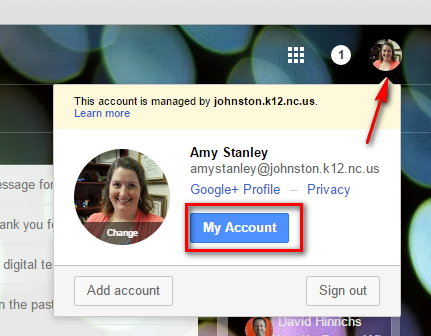
It is a good practice to frequently change your password in your google account.  Here are the steps to change your password: Step 1: From your Gmail account - access your “My Account” settings. Step 2: Once in your settings click on Personal Info and privacy to find these settings: Step 3: Using the Personal Info section find your password and sign in method, it will tell you when you last changed your password. Step 4: Once you click on your password area - you will be prompted to verify your current password and then select a new password as shown. Click “Change Password” to save.

NEWSELA

Image
Newsela  now allows you to import your classes from Google Classroom. This allows you to get started using Newsela quickly with your students. To get started, go to:  https://newsela.com/ Login or Sign-Up with your Google Account Click on your name in the top right corner of the page and click on the "Classes" tab: Click on the "Import Google Classroom" button. You will need to authorize  Newsela  to have access to your Google Classroom account. I had to close and refresh the page to see my classes. Check the box(es) next to the class(es) you wish to import: Your students will now have their own accounts created and added to your classes. You can immediately assign them articles and text sets! I hope this new feature saves you time and helps you use  Newsela  more effectively with your students!

Capitalization in Google Docs

Image
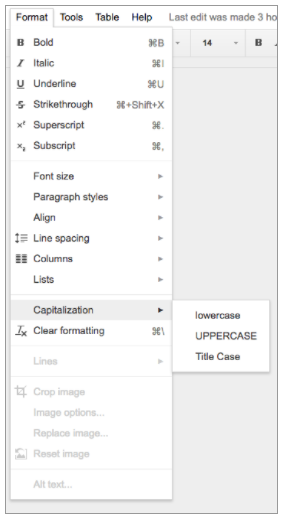
Capitalizing a large portion of text or an especially long title can be a pain. Doing the opposite—converting capital letters to lowercase—is equally a waste of time. Simply choose “Capitalization” from the Format menu in Docs, and select one of the following: lowercase, to make all the letters in your selection lowercase. UPPERCASE, to capitalize all the letters in your selection. Title Case, to capitalize the first letter of each word in your selection.

Volume Control on Desktops/Laptops

Image
Our clever students have figured out how to change the name and settings on the PC/Laptop Volume Controls task bar button.  We have had to make adjustments to the tool rights or policies.  The icon on the task bar will no longer work.   Here are directions on how to change the volume for your PC/Laptops .