Posts

Showing posts with the label google drive

Wrapping Up 2016-17!

Image
This week, we are sharing strategies for wrapping up your Google Classroom for the year. Clean Up Your Google Drive Google Classroom creates a "Classroom" folder in your Google Drive. In the folder is a sub-folder for each class you have created. You can move the folders and I recommend making a new favorites folder and moving any favorite assignments or project examples to this folder. It will make it easy to add assignments or handouts next year to your new classes. Another good idea is to create a 2016-2017 sub-folder in your "Classroom" folder and move all your current courses into the folder. This will make it clean and ready to go for next year. Archive 2016-2017 Classes Google has an archive tool to save your completed classes and remove them from your home screen.  Note  that you cannot add new assignments and students can no longer turn in assignments once a class is archived. To archive a class, login to Google Classroom and click on the...

Cleaning up for EOY

Image
The end of the school year is here and it is a great time for students and staff to cleanup your email and drives before you leave for the summer.  Here are a few best practices and tools to help you. Student/Staff Drives: It is a good idea to backup all files on your school based drives before you leave for the summer. Refer to your EOY checkout sheets for your school process. Remember that the student share drive  will be deleted  this summer so remove any files you wish to keep. Google Takeout: Go to:  https://www.google.com/ settings/takeout To create an archive of all files on up to 16 different Google products including Drive and Gmail. This process is free and very simple, just follow the onscreen directions as shown below. 1. Create an archive by selecting the services you wish to archive: 2. Select your file download type and delivery method (by default all files will download as a zip file): 3. Click Create Arc...

Google Drive without WIFI Connection

Image
Imagine: It is  7:12am , you have ten minutes until students enter your classroom and when you try to access Google Drive you see this message: Image credit At this point, you might feel like this: Image credit Thankfully, Google has some features and tools to keep us working even when the internet is down. The key is that we need to prepare for this situation in advance (while the  internet is working ). Watch this episode of the Google Apps Show and learn all about accessing Gmail and Google Drive without an internet connection ( click here for the direct link to the video ):   With offline access, you can be prepared and productive anywhere from the ball field to the beach!

Set expiration dates for access to Google Drive, Docs, Sheets, and Slides files

Image
News Release! We can now set expiration dates on Google Files instead of having to manually delete each person! Watch the video below:

Students Drive Space

Image
Are your students running out of disk space? Just a friendly reminder that students are limited to 100MB of space on their home directory when they login. If your students are unable to save to their directory, please encourage them to remove old files and use Google Drive when possible.

Sync GFiles to Sharp School Webpage

Image
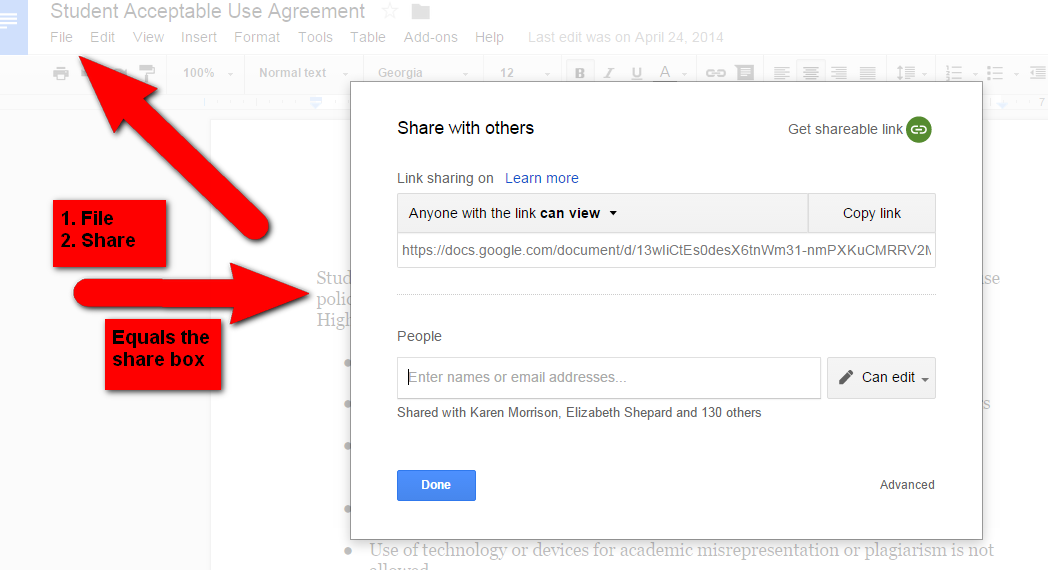
Syncing Google Files to the Sharp School Teacher Webpage Sign-in to your Google Drive Open the File you wish to sync to your teacher webpage. Click on File > Share 4.  Make sure you select “Anyone with the link can view” and COPY link. 5. Sign-in to your Sharp School Webpage 6. Staff Directory 7. Your teacher webpage 8. Go to your Document Container Page (or however you named it) 9. Click on Advanced > Switch to Design Mode 10. Under “Add New Item” drop down box, Select “link” 11. Type in the Name that you want to appear in the Document Container. 12. Paste the File Link 13. Click Add Link Viola: Note: If you do not have a Document Container page, Go to your teacher Homepage> Page Properties> Add New Page> Document Container. Also, you can organize your document container page by adding class folders by selecting in the “Add New Item” drop down and select “Folder”. Any questions, please email me at megancox@joh...

5 Chrome Extensions for Teachers

Image
If you are a user of Google Chrome here are some extensions you may want to check out: Save to Google Drive  This Google Chrome extension saves images or whole screen screenshots to your Google Drive. A Google Drive icon will be added after the Omnibox. Clicking on this extension will take a screenshot of the entire webpage you are on and save it as image file right in your Google Drive. If you want to save particular images on the page to Google Drive simply right click on the image and choose “Save to Google Drive.” Being able to save websites, screenshots and images can be invaluable as you build your curriculum resources. Please be mindful of copyright and intellectual property of others. Click Here  to install the Save to Google Drive extension. Black Menu for Google If you would like quick access to all of the Google products from ANY webpage, check out the extension Black Menu for Google. This does not simply give you a hot link to get you to a Go...

Google Drive for Educators

Image
Anyone that wants more in-depth training about Google Drive (Docs, Sheets, Slides, Forms, etc) can sign up for this FREE online Google course. To Register Visit:  Google Drive for Educators Click Here.   If the video does not play on your device, please visit:  This is Google Drive Video

VideoNot.es with Google Drive

Image
VideoNot.es  is a great app that syncs with Google Drive where students can watch a video and take notes at the same time. The best part is that all of their notes are automatically saved in Google Drive. Below is a demonstration on how to set-it up and in action or click HERE to watch.  1