Posts

Columns in Google Docs
Image
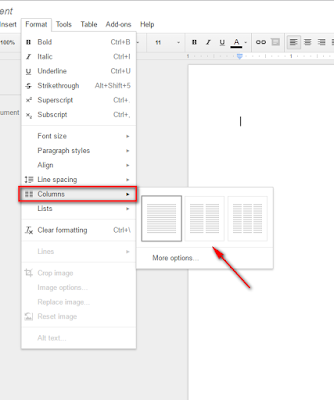
COLUMNS are finally available in Google Docs! Select Format -> Columns option allows you to add the columns to your document. You can select 2 or 3 columns for your document Once you have your columns inserted, you can go to more options to set your margins and spacing between columns, you can also add a line in between your columns: If you select the line it will appear as you start the second column of text and will look something like this:

NewsELA

Image
NEWSELA provides a way for students to read articles on their Lexile level, teachers can sync articles to Google Classroom, text sets are available, quizzes are generated from articles, articles in Spanish, and more! Check it out!

What's wrong with this picture?

Image
It's a self-charging Chromebook cart! 

Insert Images into your Quizzes using Google Quizzes aka Forms

Image
You can now add images to your answer choices in Google Forms. Doing that allows you to have students select an image as the response to a question. You can also combine images and text in your Google Forms answer choices. It also allows you to select answer key, point value, and feedback!  Check out this video for step by step instructions:  Insert Images as Answer Choices  

Guide to Co-Authoring in Schoolnet

Image
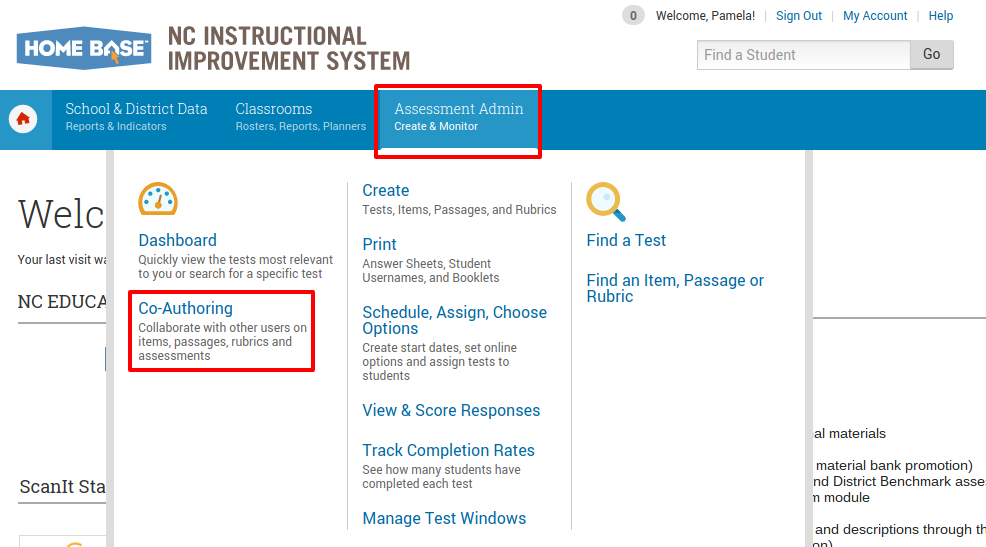
Guide to Co-Authoring in Schoolnet Sharing tests in Schoolnet changed last November with the update to include Co-Authoring. You can now share tests with any user within the state with Co-Authoring. No additional role or access is needed. I have included a guide with instructions on Co-Authoring below. You need to have the author of the test add you under the Co-Authoring settings for the test. Part I: What is Co-Authoring? Co-authoring is a new form of collaboration in Schoolnet that allows you to collaborate with any educator in the state of North Carolina. Currently, you can work together to create assessments, items, passages, and rubrics in Schoolnet. Part II: Where do I find Co-Authoring? Login to the NCEdCloud and open Schoolnet Under “Assessment Admin”, click on “Co-Authoring” Part III: Co-Authoring Home Screen This is the Co-Authoring homepage, from this page you can see all items, passages, rubrics, tests, and folders you co-author. On the r...

SMART Notebook for your HOME Computer

Image
Downloading SMART Notebook Software to your home computer Go to: https://education.smarttech.com/en/products/smart-learning-suite Download Notebook Enter License Key You will then need to activate your software by putting in the following code: Smart Notebook 14 NC-2ADAC-CNC5N-4QTSA-AWAAA-AAA bit.ly/smarthomeuse

Grant Approval Form

Image
Grant Clarification!    Yes, there is a grant approval link/docu-sign on the website - Here is the location and image of what you fill out to have the final document sent to you in email.